GB WhatsApp Not Working? Fix Bans, Crashes and Errors
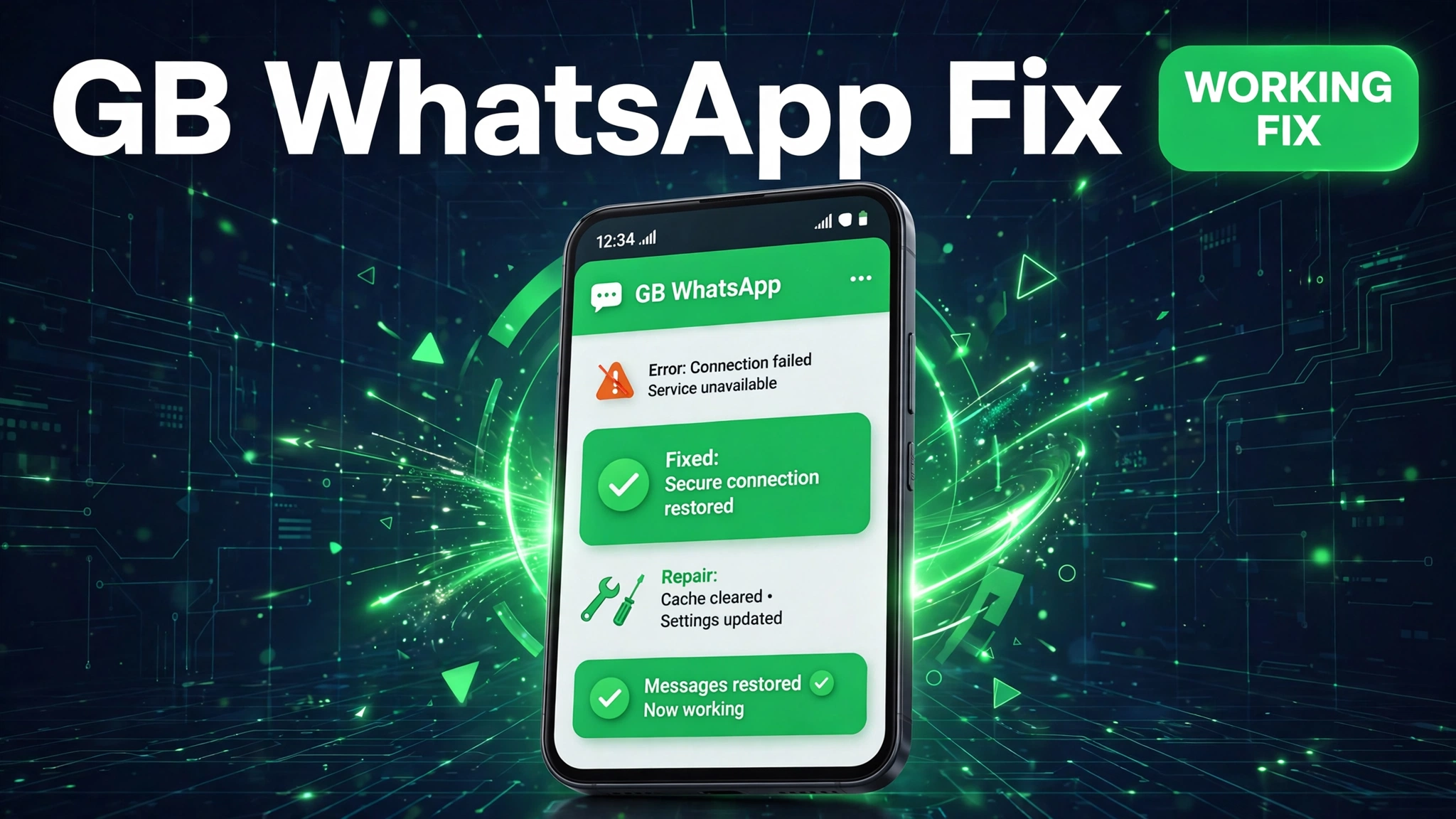
GB WhatsApp was working fine yesterday and today your messages will not send, the app crashes on open, or a dreaded temporarily banned screen greets you. Your chats feel hostage to a problem you did not cause.
Here is the reality check: most GB WhatsApp failures are not random. Temporary bans come from WhatsApp enforcement, message failures come from outdated builds, and crashes come from data conflicts. Each has a specific fix, and guessing wastes the time that a temporary ban is already costing you.
This guide fixes every common GB WhatsApp problem in priority order, starting with the ban screen that panics everyone, so you can recover fast and protect your chats.
Quick Answer: If GB WhatsApp is not working, first check for a temporary ban notice, which needs waiting out on the official app. For crashes and message failures, update to the latest v18.60 build, clear the app cache, and re register your number. Back up your chats before any reinstall.
Problem 1: Temporarily Banned Screen
This is the most feared GB WhatsApp problem. WhatsApp detects the unofficial client and locks the number temporarily, usually starting at 24 hours. The screen names a countdown and offers no appeal button.
Fix: do not try tricks to bypass it. Install the official WhatsApp, verify the same number there, and wait out the countdown. Using the mod again immediately after the ban lifts on the same number risks a longer second ban. Many users keep the number on the official app for a few weeks before returning to the mod, or move mod use to a secondary number permanently.
Anyone promising an instant unban tool is lying. The ban lives on WhatsApp servers, and no app on your phone can clear it.
Problem 2: Messages Not Sending or Receiving
Most likely cause: an outdated build. WhatsApp changes its messaging protocols regularly, and old mod builds silently lose the ability to send or receive.
Fix: update to the latest GB WhatsApp build using the button below. Install it over your current version without uninstalling, so chats stay intact. After updating, messages usually flow immediately. If they do not, toggle airplane mode for ten seconds to force a fresh connection.
Problem 3: App Crashes on Open
Most likely cause: corrupted app data or a conflict with leftover official WhatsApp data.
Fix: clear the app cache first. If crashes continue, back up your chats, then clear app data and set up fresh with a restore. When even that fails, uninstall fully, restart the phone, and install the latest build clean. Our GB WhatsApp APK download guide has the verified file and full install steps.
Problem 4: Stuck on Initializing or Connecting
Most likely cause: network interference. VPNs, aggressive firewalls, and unstable connections all break the mod handshake with WhatsApp servers.
Fix: turn off the VPN and try on mobile data instead of WiFi, or the reverse. Confirm the official WhatsApp connects on the same network, which tells you whether the problem is your connection or the mod.
Problem 5: Cannot Update to the New Version
Most likely cause: signature mismatch. If your installed build came from a different modder than the update, Android blocks the over the top install.
Fix: back up chats, uninstall the old build, and install the new one fresh, then restore. To avoid this cycle, always update from the same source as your installed build. Our how to update mod APK without losing data guide covers the signature issue in depth.
Problem 6: Backup Restore Fails
Most likely cause: the backup belongs to a different build or the backup folder moved. GB WhatsApp looks for backups in its own folder, not the official WhatsApp folder.
Fix: verify the backup file exists in the GB WhatsApp backup folder before reinstalling. Copy it there manually with a file manager if needed, then run the restore during setup. Test the restore before deleting anything.
Protect Your Chats Before Anything Breaks
Every fix above is safer with a backup in hand. Turn on GB WhatsApp local backup in the mod settings and run one manually before updates. Copy the backup folder to a second location with a file manager. Chats you can restore make every other problem a minor inconvenience.
When to Move to the Official App
Be honest with yourself if bans keep coming. Repeated temporary bans on your main number are WhatsApp telling you to stop. The official app with a linked companion device covers most needs, and mods like WhatsApp Plus or FM WhatsApp do not escape the same enforcement. Your main number deserves the official app.
Safety Note
GB WhatsApp is an unofficial client, and every fix here assumes you accept the ban risk and the privacy tradeoff of third party code handling your messages. Never pay for unban tools, never enter your number on shady unban sites, and read is mod APK safe before going deeper.
Frequently Asked Questions
How long does a GB WhatsApp temporary ban last
First bans usually last 24 hours, shown as a countdown in the app. Repeat offenses bring longer bans. Wait it out on the official app and do not try bypass tools, which never work.
Will I lose my chats if I reinstall GB WhatsApp
Not if you back up first. Create a local backup in the mod settings and copy the backup folder elsewhere. Reinstall, then restore during setup. Without a backup, chats are gone.
Why are my messages stuck with one tick
One tick means the message never left your phone for the server. Update the mod to the latest build first, then check your connection. Outdated builds are the top cause.
Can I use GB WhatsApp after a ban on the same number
Yes, once the countdown ends, but the number is now flagged. Many users switch that number to the official app permanently and run mods only on a secondary number.
Why does GB WhatsApp keep crashing after updating
Old data conflicting with the new build. Clear the cache, and if needed clear data with a backup ready, then set up fresh. A clean reinstall resolves the stubborn cases.
Is there a way to avoid bans completely
No. Every WhatsApp mod carries ban risk and no setting removes it. Keeping the build current and avoiding spam like behavior reduces the odds, but the risk never reaches zero.
Should I switch to a different WhatsApp mod
Switching mods does not escape WhatsApp enforcement, since all unofficial clients face the same detection. Pick the mod whose features you like, such as GB WhatsApp vs WhatsApp Plus, and manage the risk the same way.
Conclusion
GB WhatsApp problems look alarming but they follow a short list: bans need patience on the official app, message failures need the latest build, crashes need cache clearing or a clean reinstall, and updates need matching signatures. Back up your chats before touching anything and most fixes take minutes. If bans keep finding your main number, take the hint and move it to the official app, keeping mod experiments on a secondary number where the risk belongs.
Key Points
- Temporary bans must be waited out on the official app. No tool bypasses them.
- Update to the latest v18.60 build to fix message sending failures.
- Back up chats before every reinstall or update.
- Clear cache first, clear data second, clean reinstall third.
- Keep your main number on official WhatsApp and mods on a secondary number.
References
- WhatsApp official site, account and ban policy information
- WhatsApp FAQ, temporarily banned accounts help
Disclaimer: GB WhatsApp is a third party client not affiliated with WhatsApp LLC or Meta. Unofficial clients can trigger temporary or permanent bans. This guide is for information only.