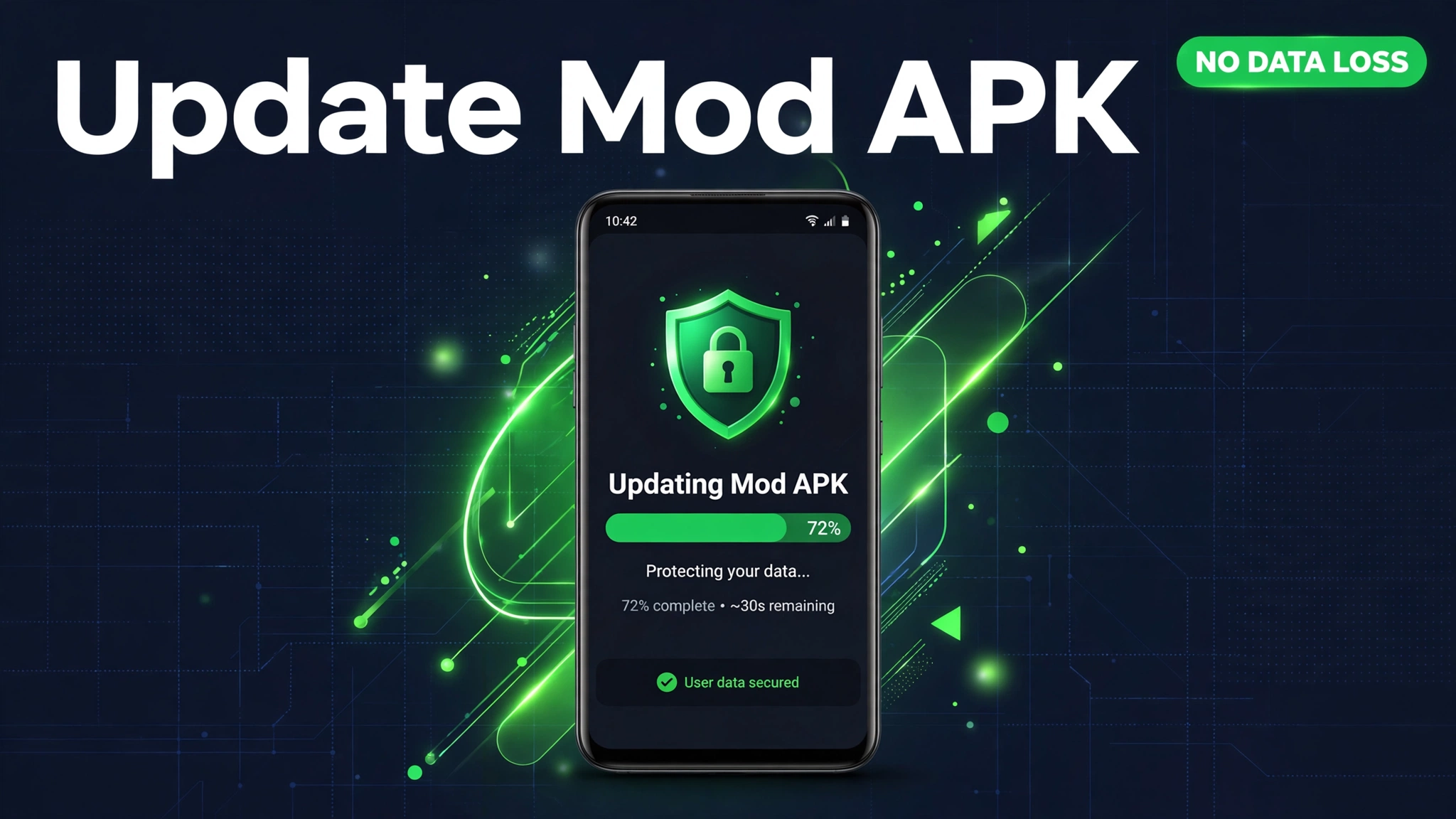
How to Update Mod APK Without Losing Data (2026)
A new version of your favorite mod just dropped with features you want, but your game progress, chats, and settings live inside the old one. Update wrong and everything resets to zero.
Here is the key insight most update guides miss: on Android, installing a new APK over the old one keeps your data automatically. Data loss almost always comes from one specific mistake, which is uninstalling first, or from switching to a build signed by a different modder.
This guide shows the safe update method step by step, how to back up before you touch anything, and what to do when the new build refuses to install over the old one.
Quick Answer: To update a mod APK without losing data, never uninstall the old version. Download the new APK and install it directly over the old one, because Android keeps all app data during an over the top install. Back up your data first, and use a build from the same modder to avoid signature conflicts.
The Golden Rule: Never Uninstall First
Android stores an app data in a private folder tied to the installed app. When you install a newer APK over the existing one, Android replaces only the app files and leaves that data folder untouched. Your progress, settings, and logins survive.
Uninstalling deletes that data folder permanently. This is where almost every data loss story begins: the user uninstalls the old version to make room, installs the new one, and finds a fresh empty app. The update itself was never the danger. The uninstall was.
How to Update Safely, Step by Step
- Back up your data first. Use the app built in backup or cloud sync if it has one. For games, confirm cloud save is on. For WhatsApp mods, run a local chat backup from the app settings. This is your safety net.
- Download the new APK from the same source and modder as your current version. Same modder means same signature, which is what allows the over the top install.
- Do not uninstall anything. Leave the old version exactly where it is.
- Tap the new APK file to start the installer. Android will ask if you want to update the existing app. Confirm it.
- Wait for the install to finish and open the app. Your data, progress, and settings should be exactly as you left them.
- Verify before deleting. Open the app, check your progress, then delete the APK file. Keep the backup until you are sure everything works.
Back Up Before You Touch Anything
A backup turns a risky update into a safe one. The method depends on the app type.
Apps with cloud sync: games with Google Play Games sign in, note apps with account sync. Open the sync screen and confirm the last sync time is recent before updating.
WhatsApp mods: open the mod settings, find the backup option, and create a local backup. Copy the backup folder to another location with a file manager for extra safety.
Games with local saves: some store progress in the Android data folder. A file manager backup of that folder can save you, though restoring it needs the same app signature.
Manual APK backup: use an APK extractor app to save a copy of your currently installed version. If the new build misbehaves, you can roll back to the exact version you had.
The Signature Problem, Explained Simply
Every APK is stamped with a digital signature from whoever built it. Android only allows an over the top install when the new file carries the same signature as the installed app. This is a security feature, and it is also the biggest headache in mod updates.
Two modders releasing the same app produce different signatures. If your current mod came from modder A and the update comes from modder B, Android refuses the install and tells you to uninstall first. Uninstalling wipes your data, which is exactly what we are avoiding.
The fix: always update from the same modder and source as your installed version. When you pick a mod source, you are also picking your future update path, so choose a source that updates regularly.
When the New Build Will Not Install Over the Old
If the installer blocks the update with a signature error, you have two options. The clean option is to find the new version from your original modder, which will carry the matching signature and install smoothly.
If that version does not exist, you must uninstall and accept data loss, unless your backup can restore into the new build. This is why the backup step comes first, not last. After reinstalling, restore from your backup or cloud save and confirm everything returned.
Special Cases
Split APKs and app bundles: some mods come as multiple files. Install them together with a split APK installer app, over the old version, the same way. Do not install only one piece.
OBB data files: large games keep extra data in the OBB folder. An over the top install leaves OBB data alone, but if the new version needs new OBB files, place them before launching or the game may crash.
Rooted phones: backup apps can save full app data on rooted devices, making even signature change updates safe. Without root, you depend on the app own backup features.
Safety Note
Only update from sources you trust, because a malicious update has full access to your existing app data. Never install an update that arrives as a surprise file from an unknown sender. Our is mod APK safe guide covers source vetting, and how to install a mod APK walks through clean installs when an update is not possible.
Frequently Asked Questions
Will updating a mod APK delete my game progress
No, if you install the new version over the old one without uninstalling. Android preserves app data during updates. Progress is lost only when you uninstall first or switch to a differently signed build.
Why does Android say app not installed when I update
This is almost always a signature mismatch between your installed version and the new file. Get the update from the same modder as your current version. Our app not installed error fix guide covers every cause.
Should I clear data before updating a mod
No. Clearing data wipes exactly what you are trying to protect. Update over the top, verify everything works, and only then think about cleaning anything.
Can I go back to the old version if the update is bad
Yes, if you saved the old APK with an extractor app before updating. Uninstall the new version, install the saved old APK, and restore your backup. This is why the backup step matters.
Do I need to back up if I use cloud save
Cloud save covers most cases, but confirm the last sync actually happened before updating. A sync that silently failed weeks ago will not protect you today.
What if the new version needs more Android version than my phone
Then the update cannot install at all. Stay on your current version and look for a build made for your Android version, or accept that this app has outgrown your phone.
Is it safe to update mods from a different site each time
It is risky. Different sites often repackage with different signatures, which forces uninstalls and data loss. Pick one trusted source per app and stay with it for updates.
Conclusion
Updating a mod APK without losing data is simple once you know the rule: install the new version over the old one and never uninstall first. Back up before every update, stay with the same modder for matching signatures, and verify your progress before deleting anything. Follow this routine and updates become boring in the best way, with new features arriving and your data exactly where you left it.
Key Points
- Never uninstall before updating. Over the top installs preserve all app data.
- Back up first: cloud sync, in app backup, or a manual copy of your data.
- Use updates from the same modder to avoid signature mismatch blocks.
- Save your current APK with an extractor app so you can roll back.
- Verify your progress works before deleting backups.
References
- Android official site, app update and data behavior
- Android Developers, app signing and update rules
Disclaimer: This guide covers general Android app update behavior. Mod APKs carry extra risks around signatures and sources, so back up before every update.