VidMate for PC: Download and Run VidMate on Windows and Mac
VidMate is a phone app, but many users want its downloads on a bigger screen with proper keyboard control. A Windows PC can run it, yet most guides only explain the phone install.
The catch is that VidMate has no Windows version. You need an Android emulator, and the setup steps, keyboard use, and file locations are rarely explained in one place.
This guide covers VidMate for PC step by step: the verified APK file, the emulator setup for Windows and Mac, and the fixes for the errors PC users actually hit.
Quick Answer
VidMate for PC runs on Windows and Mac through an Android emulator, because there is no official Windows version. Install BlueStacks or LDPlayer, install the verified VidMate APK inside it, and download videos to your computer storage. The verified file is version 6.0302 at 33.7 MB, and the emulator method also works for saving videos to PC folders.
What Is This App
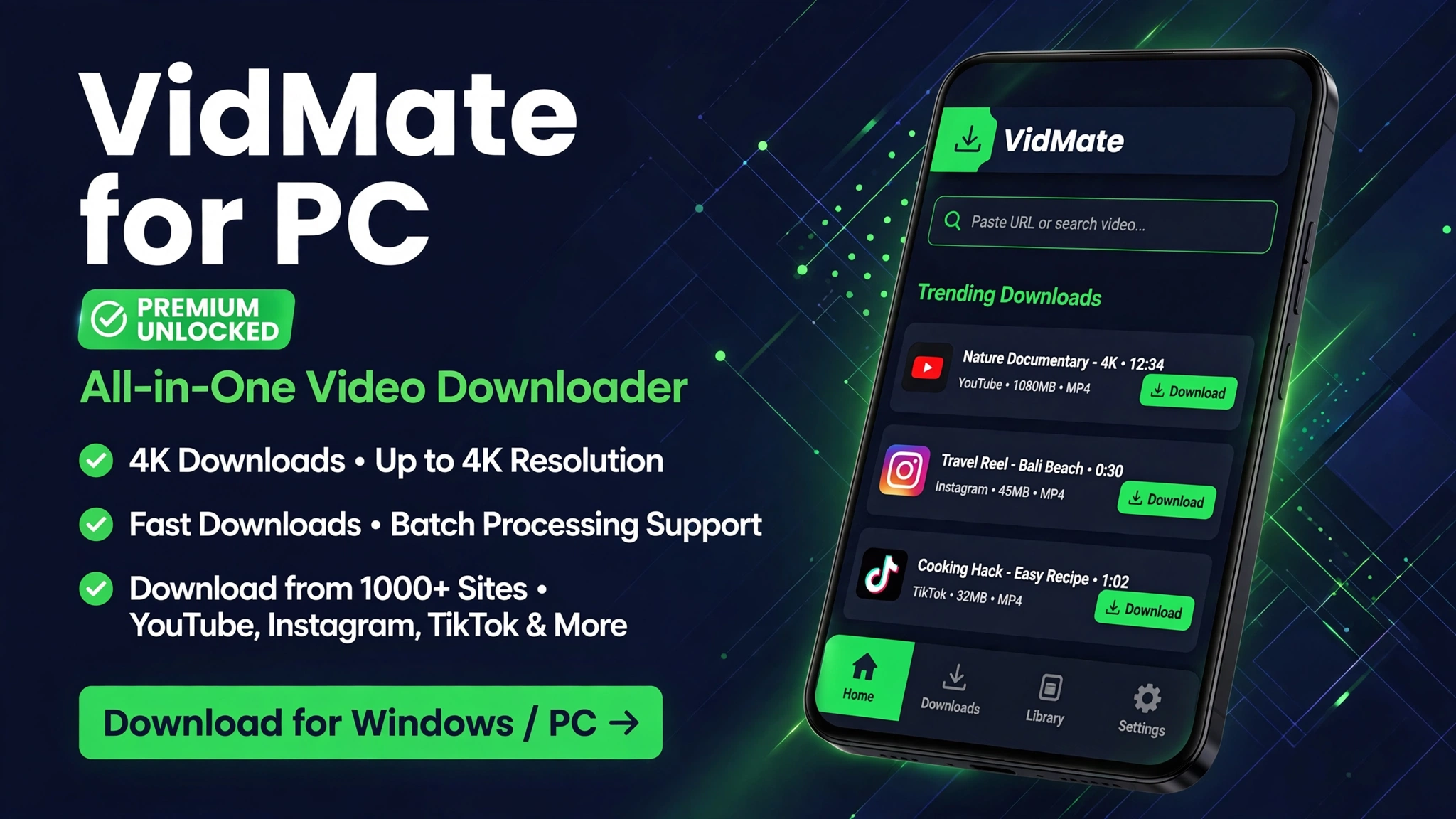
VidMate is an Android video downloader. It lets you save videos and music from supported sites, pick a quality level, and watch offline later.
There is no official Windows version of VidMate. The PC method runs the same Android APK inside an emulator, which is a program that creates an Android phone on your computer.
If you only need the phone version, start with the VidMate APK Download guide. This guide is for Windows and Mac users who want the bigger screen, a keyboard, and downloads saved on a computer.
Key Features
- Download videos in several qualities, from small files for slow connections to full HD for a big screen.
- Save audio only as MP3 when you only need the sound track of a video.
- Browse supported sites inside the app and download with one tap from the video page.
- Pause, resume, and manage several downloads from one download list.
- Use the same APK file on a phone and inside a PC emulator, so you only learn one setup.
Download
How to Download and Install
- Install an emulator first. BlueStacks and LDPlayer are the two most used options on Windows, and both are free to install.
- Open the emulator, finish its first setup, and sign in with a Google account if it asks for one.
- Tap the Download Now button on this page and wait for the 10 second timer to finish. Save the VidMate APK file on your computer.
- Inside the emulator, use the Install APK option or drag the APK file into the emulator window.
- Wait for the install to finish, then open VidMate from the emulator home screen and start downloading.
- To find saved videos later, open the emulator media manager or shared folder and copy files to your Windows folders.
System Requirements
| Requirement | Minimum | Recommended |
|---|---|---|
| Operating system | Windows 10 64 bit | Windows 11 64 bit |
| RAM | 4 GB | 8 GB or more |
| Free storage | 5 GB | 10 GB or more |
| Processor | Dual core | Quad core or better |
| Internet | Stable broadband | Stable broadband |
Pros and Cons
| Pros | Cons |
|---|---|
| Free to use with no subscription | No official Windows app exists |
| Large screen and keyboard control | Emulator setup takes extra time |
| Downloads saved on PC storage | Needs more RAM than a phone |
| Same APK file as the phone version | Some sites change players and break downloads |
| Works on Windows and Mac with an emulator | Fake EXE files online can carry malware |
Mod Version Compared With the Original
| Feature | Original App | Mod Version |
|---|---|---|
| Windows app | No official version | Runs through an emulator |
| Screen | Phone screen only | Full PC monitor |
| Controls | Touch only | Mouse and keyboard |
| Storage | Phone storage | PC hard drive space |
| Install method | APK on Android | APK inside an emulator |
Which Emulator Should You Pick
BlueStacks is the easiest choice for most Windows users. It installs fast, it maps keyboard keys well, and it runs VidMate smoothly on a mid range PC.
LDPlayer is lighter on RAM and suits older PCs. NoxPlayer is a third option, and it works well on Mac computers where BlueStacks feels heavy.
Pick one emulator and stick with it. Installing three emulators at once only splits your RAM and slows every app down.
Related Guides
Common Errors and Fixes
- Emulator will not start: turn on virtualization in your PC BIOS settings, then restart the emulator. This one setting fixes most emulator launch failures.
- APK will not install in the emulator: use the emulator Install APK button instead of opening the file in Windows. Windows cannot install APK files on its own.
- Download button missing on a video page: update VidMate to the latest version, then paste the video link into the app search bar and try again.
- Slow downloads on PC: switch from mobile data tethering to broadband WiFi, and lower the video quality for a faster file.
- App crashes inside the emulator: give the emulator more RAM in its settings, close other heavy programs, and restart the emulator.
Safety Note
VidMate is not on the Play Store, so only download the APK from a source you trust and scan the file before installing it. Never run a file named VidMate EXE, because the real app is an APK and EXE copies are unofficial builds. Read Is Mod APK Safe and How to Install Mod APK before you start.
Frequently Asked Questions
Is VidMate available for PC?
No. VidMate has no official Windows or Mac version. You run the Android APK inside an emulator such as BlueStacks or LDPlayer, and that method works on Windows 10, Windows 11, and Mac.
Is VidMate for PC free?
Yes. VidMate itself is free, and BlueStacks and LDPlayer both offer free versions. You only pay for your own internet connection and your computer hardware.
Is a VidMate EXE file safe?
No. Treat any VidMate EXE file as unsafe, because the developer never released a Windows EXE. Only the APK file is real, and it must run inside an emulator.
Can I use VidMate on Windows 7?
It can work with an older emulator version, but support is limited. Windows 7 no longer gets normal security updates, so Windows 10 or Windows 11 is the safer choice.
Where do PC downloads go?
Downloads land inside the emulator storage first. Open the emulator media manager or shared folder to copy videos to your Windows folders.
Why does VidMate fail inside the emulator?
The usual causes are virtualization turned off, too little RAM given to the emulator, or an old APK. Turn on virtualization, raise emulator RAM, and install the latest APK.
Can I use the same APK on my phone and PC?
Yes. The APK file in this guide is the same Android file. Install it on a phone directly, or install it inside an emulator on a PC.
Conclusion
VidMate for PC means one extra step and one big payoff: install an emulator, install the verified APK inside it, and you get phone downloads on a full PC screen. Skip any EXE file, keep the emulator updated, and the setup stays simple.
Key Points
- VidMate has no official Windows version, so an emulator is required
- BlueStacks suits most PCs and LDPlayer suits lighter PCs
- The verified APK is version 6.0302 at 33.7 MB
- Never install a VidMate EXE file
- Saved videos live in emulator storage until you copy them out